Import patients from CSV
Adds many patients at once from a CSV file, for example an export from your previous practice software or a spreadsheet. The file is checked first; nothing is saved until you confirm.
Open it from the patient list with Import CSV. The button and the screen need the patients.write permission.
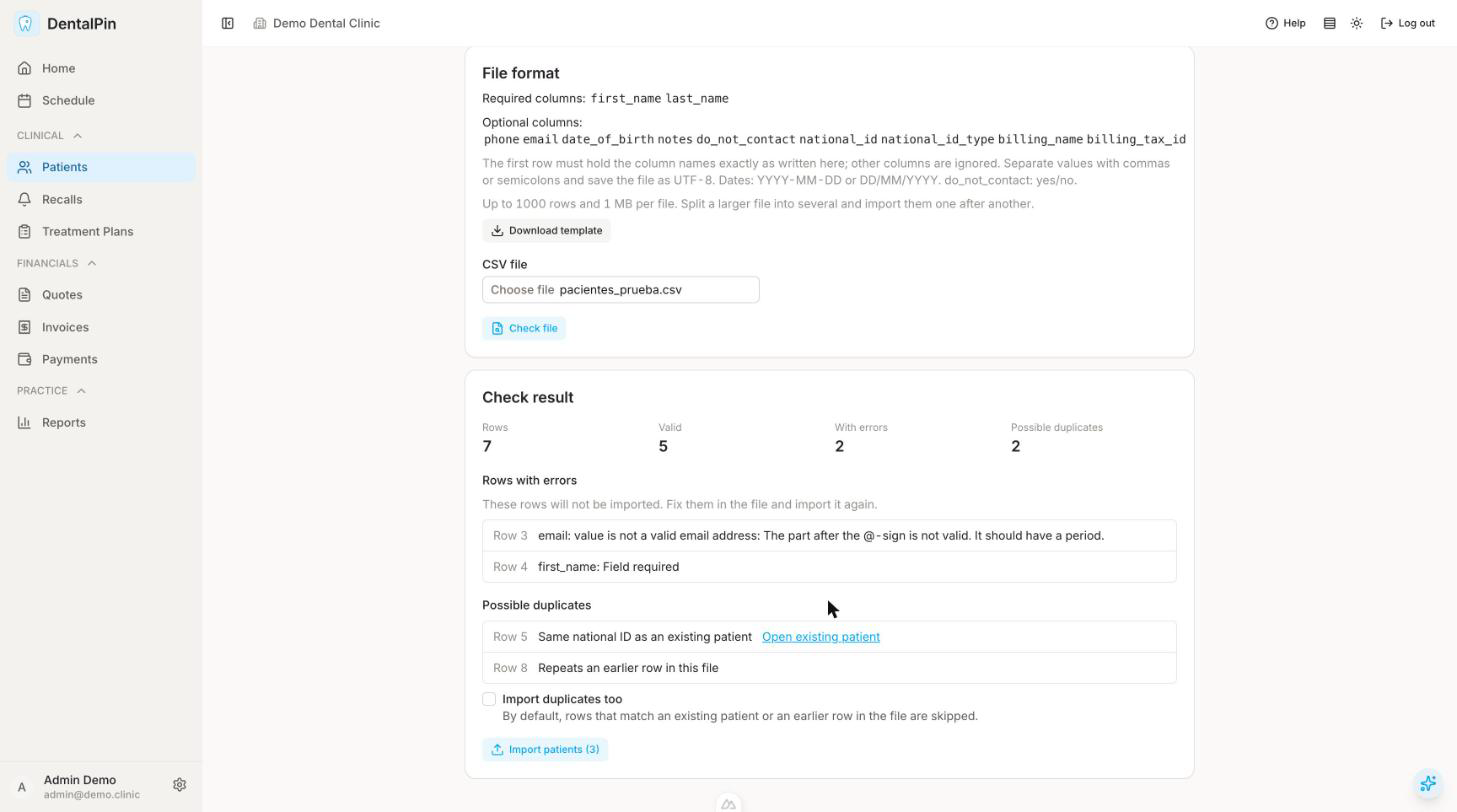
1. Prepare the file
- The first row holds the column names. Required:
first_name,last_name. Optional:phone,email,date_of_birth,notes,do_not_contact,national_id,national_id_type,billing_name,billing_tax_id. Other columns are ignored, so an export from another system can be imported without deleting columns, but the names above must match exactly. - Download template gives you a file with the right header and one example row.
- Values separated by commas or semicolons (detected automatically). Save the file as UTF-8.
- Dates as
YYYY-MM-DDorDD/MM/YYYY.do_not_contacttakes yes/no, true/false or 1/0; empty means no. - At most 1000 rows and 1 MB per file. Split a larger list into several files and import them one after another.
2. Check the file
Choose the file and click Check file. This runs the import without saving anything and shows:
- Rows, Valid, With errors and Possible duplicates.
- Rows with errors: the file line and the reason (a missing name, an invalid email, a date in another format…). These rows are never imported; fix them in the file and import it again.
- Possible duplicates: rows that match an existing patient by national ID, or by email and date of birth together, with a link to that patient. A row that repeats an earlier row of the same file is listed too.
A file that cannot be read at all (not UTF-8, missing a required column, over the limits) shows the reason instead of a result.
3. Import
Click Import patients (N). N is the number of valid rows, minus the possible duplicates. Tick Import duplicates too to create those rows as well.
Each patient is created exactly as if it had been entered by hand, so other modules react as usual. A large file can take a little while. When it finishes, the screen shows how many patients were created and how many were skipped as duplicates.
If the import fails part-way, look at the patient list before trying again: some patients may already have been created, and the duplicate check only recognises rows with a national ID or with an email and a date of birth.